New Router
I am going to review a new 4G LTE router that is available, it has some very interesting capabilities including upgrade-able antennas and using your Android or iOS device as the WAN source. Stay tuned.
|
|


New Age
Thanks to all of you that access this blog. Some of the information is very dated. The articles that relate to antenna installations ... those remain current.
|
|
Remote Locations – making the connection
There are often situations whereas you have a computer that is so distant from the router that the signal can’t reach – or is very poor.
Such as router on third floor – computer in basement. Sure, you try fishing 30-40 ft of Cat5 down to it, but there is a much easier way. Power-line Ethernet adapters.

It could not be simpler to extend the range of your network. These are sold in kits so you receive two units which are exactly the same. Plug one into a wall outlet where the router / modem is located – run a cat5 cable from the router and plug it into the adapter:
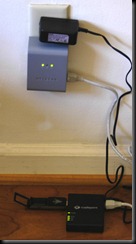
Take the other unit to the location you need computer / internet access to, and plug it into the wall. Then run another cat5 cable from the adapter to your computer:

You could also plug in another router to the second adapter and have WiFi throughout the area.

So if for example, you have a distant outbuilding, or a multi – level house - and your router just can’t penetrate the walls, the signal is weak, or the distance too great … this is a very good solution.
Keep in mind that when using this system, both adapters must be on the same electrical circuit - meaning the same service panel - not the same circuit breaker. It works on any outlet in my house no matter where it is.
You can add as many of these as you want. I bought the NetGear version, but they are made by several vendors. Really simplifies those hard to reach areas.
Link below:
Such as router on third floor – computer in basement. Sure, you try fishing 30-40 ft of Cat5 down to it, but there is a much easier way. Power-line Ethernet adapters.

It could not be simpler to extend the range of your network. These are sold in kits so you receive two units which are exactly the same. Plug one into a wall outlet where the router / modem is located – run a cat5 cable from the router and plug it into the adapter:

Take the other unit to the location you need computer / internet access to, and plug it into the wall. Then run another cat5 cable from the adapter to your computer:

You could also plug in another router to the second adapter and have WiFi throughout the area.

So if for example, you have a distant outbuilding, or a multi – level house - and your router just can’t penetrate the walls, the signal is weak, or the distance too great … this is a very good solution.
Keep in mind that when using this system, both adapters must be on the same electrical circuit - meaning the same service panel - not the same circuit breaker. It works on any outlet in my house no matter where it is.
You can add as many of these as you want. I bought the NetGear version, but they are made by several vendors. Really simplifies those hard to reach areas.
Link below:
|
|
Subscribe to:
Posts (Atom)